

Wamkelekile, Welkom

Let’s connect
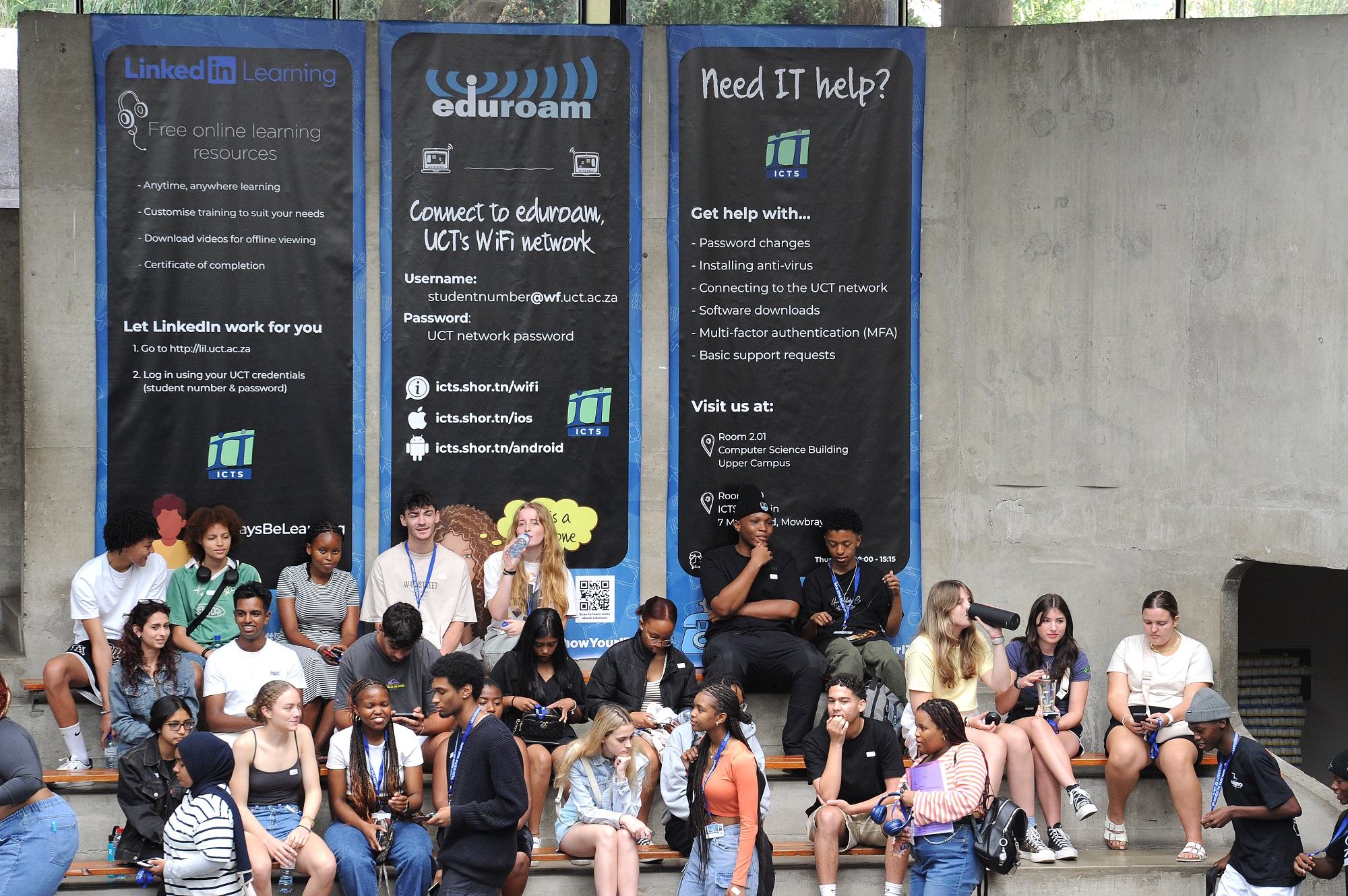
Information and Communication Technology Services (ICTS) keeps you connected to UCT’s online services. Read to find out how to connect, find software and stay safe while you’re online.
The quick guide
For a short guide on all things digital at UCT, look at the ICTS Checklist. Alternatively, view A Student Guide to ICTS Services.
Connect to Wi-Fi
Connect to eduroam, UCT’s Wi-Fi network, using your username (studentnumber@wf.uct.ac.za) and your UCT network. After registration, you can reset your password.
Sign in to your UCT email
Log on to your email account. Remember to check it regularly – this is where you’ll find all official university communications.
Hook up your phone
Go to your app store (Android/iOS) and download the UCT Mobile App to access timetables, library services, maps and more. For support, email uctmobile@uct.ac.za.
Get to know Amathuba
Amathuba is UCT’s digital learning platform, which supports face-to-face teaching and learning and offers a wide range of features in an attractive, modern and engaging user interface. For assistance, contact the Centre for Innovation in Learning and Teaching’s (CILT) Helpdesk: cilt-helpdesk@uct.ac.za or call 021 650 5500 weekdays from 09:00 to 17:00.
Get free software
Before buying any software, first check what site-licenced software is available for free. Microsoft 365 is available via your myUCT account, and UCT has signed up to use Google Workspace. All UCT students have access to Microsoft 365 at no cost (as part of Microsoft’s Student Advantage Program) and you will be able to download and install the software on up to five devices, including Windows and Mac computers; and Windows, Android and Apple mobile devices for the duration of your registration as a student at UCT.
Be responsible
Don’t use the internet for anything illegal, especially not streaming, sharing or downloading copyrighted content. Also, respect the email and internet usage policy.
How to get IT help on campus
The ICTS front office. Get walk-in support in room 2.01 of the Computer Science Building on upper campus. The office is open from 08:00 to 16:30 during the week (but closes at 15:15 on Thursdays).
ICTS-on-Main Walk-in Centre. For those nearer to lower campus, the walk-in centre is in room 1.10 of the ICTS building, located at 7 Main Road, Mowbray, and operates at the same times as the upper campus office.
Social media. ICTS provides basic support on Facebook and Twitter, but if they can’t help, they’ll escalate your issues to someone who can. They’re online seven days a week from 07:00 to 22:00 during term.
Student labs. Lab administrators and assistants are on hand to help you in any of the ICTS-managed labs around campus. Some labs may be closed from time to time, so please check with your faculty.
The IT Helpdesk. Get support by logging a call online, or sending an email to icts-helpdesk@uct.ac.za.
Printing
For all your printing, scanning and copying needs, use the Managed Print Services available across campus.
Online training
Get access to thousands of online courses covering topics such as software, design, and business skills via LinkedIn Learning. Courses range from beginner to advanced and are available 24/7.
ICTS, together with UCT Libraries, have acquired the Gartner core IT research package, which contains thousands of reports on over 700 topics.
Six tips for staying cyber secure
- Use strong passwords. The longer and more complex your password is, the better. A password should contain numbers, symbols and upper- and lower-case letters.
- Install anti-virus. Up-to-date anti-virus applications should be on all your computers. Download Trellix (formerly known as McAfee) for free from the ICTS website and find a good anti-virus for your mobile devices.
- Back up, back up, back up. Make sure you have a backup (or two). You can back up data to physical devices or to the cloud (UCT offers Google Drive and OneDrive).
- Spread the word. If you know of a cybersecurity threat or incident, please inform everyone you know who might be affected.
- Report it to CSIRT. If you experience any cybersecurity threat, please contact UCT’s Computer Security Incident Response Team (CSIRT) at csirt@uct.ac.za. Find out more about the UCT CSIRT.
- Avoid identity theft. Dispose of sensitive paperwork safely (eg, by shredding), enable SMS or app alerts for your banking, and never share personal information online.